FLOWSIG / GUIDE

Set up FlowSig step by step

Start with a source, then connect an exchange and set your trading rules. After that, choose whether to test signals or place live trades.

Test mode is optional. Live trading is available when you choose it.01—07
Step 1

Connect a source: Telegram or X

Open Sources and choose the platform that works for you. For Telegram, connect your account and configure channels you already read. For X, add the creator’s exact @username. FlowSig reads only the sources you select.
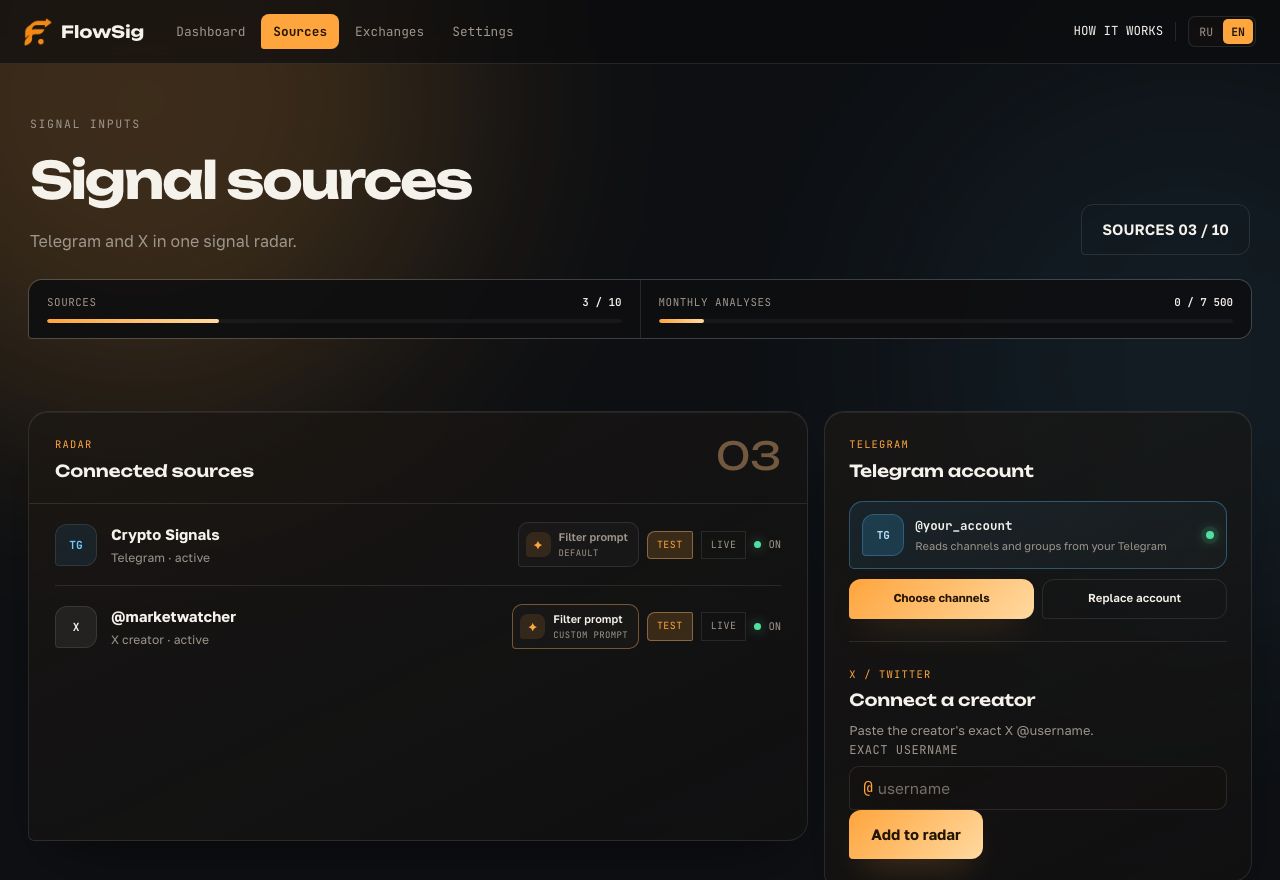
  • Telegram is read-only: FlowSig cannot send messages as you. You can replace your Telegram account or change your channel list at any time.
  • X does not require your personal X account or your own X API key. Add a creator and FlowSig will check only that creator’s new text posts.
Connect a source: Telegram or X
Step 2

Connect an exchange for LIVE

Test mode works without an exchange key. For live trading, open Exchanges and connect Binance USDⓈ-M Futures, Bybit USDT Perpetual, or OKX USDT Perpetual Swaps. One selected exchange is active at a time.
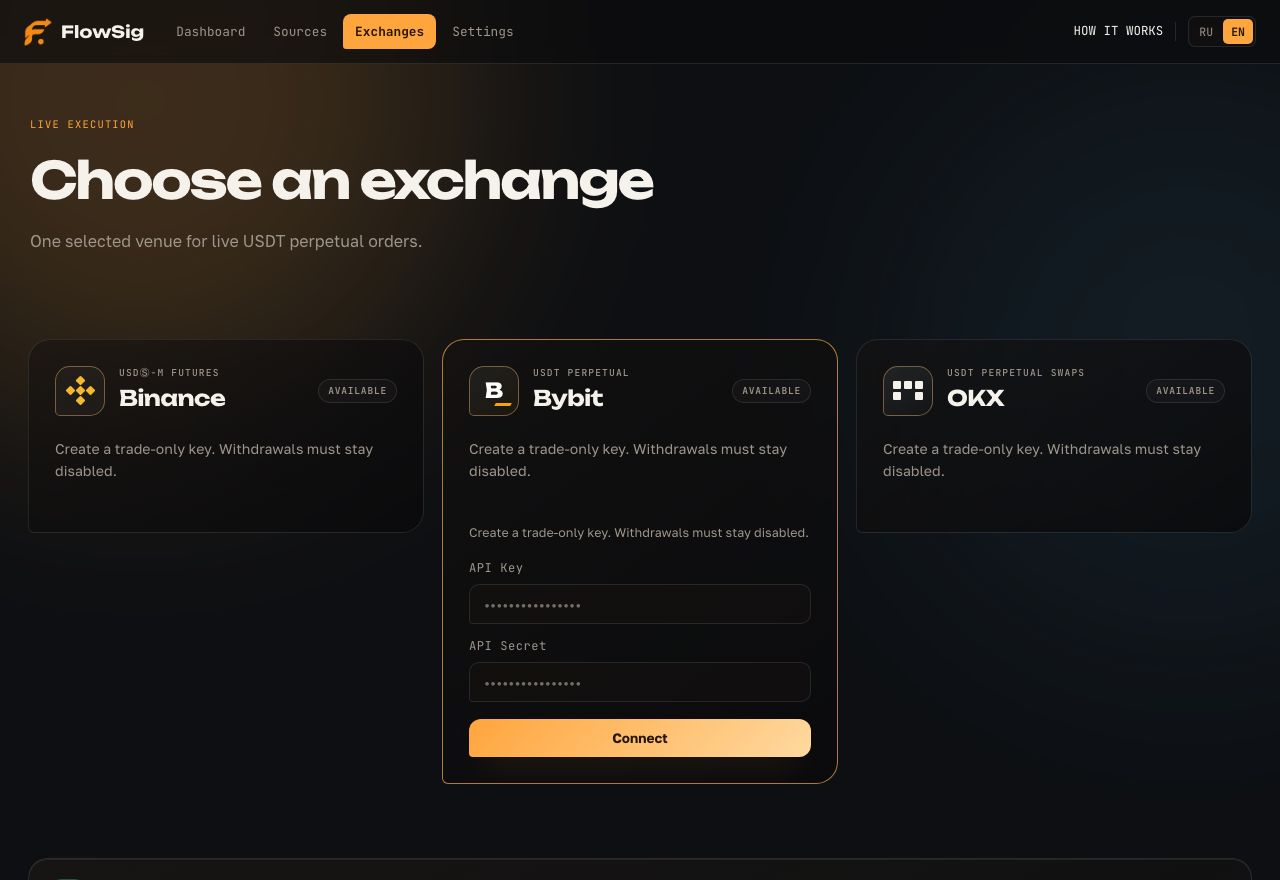
  • Create a dedicated API key with read and futures-trading access. FlowSig checks the key before saving it and rejects a key that has withdrawal permission.
  • API Key, Secret, and Passphrase belong only in FlowSig’s secure form. Never send them through Telegram, email, or screenshots; support will never request them.
Connect an exchange for LIVE
Step 3

Set your rules and choose TEST or LIVE

In Settings, choose position size, leverage, stop loss, take profits, limits, and automatic closing. Then select TEST or LIVE for each source. TEST models trades at market prices; LIVE sends real orders to your connected exchange.
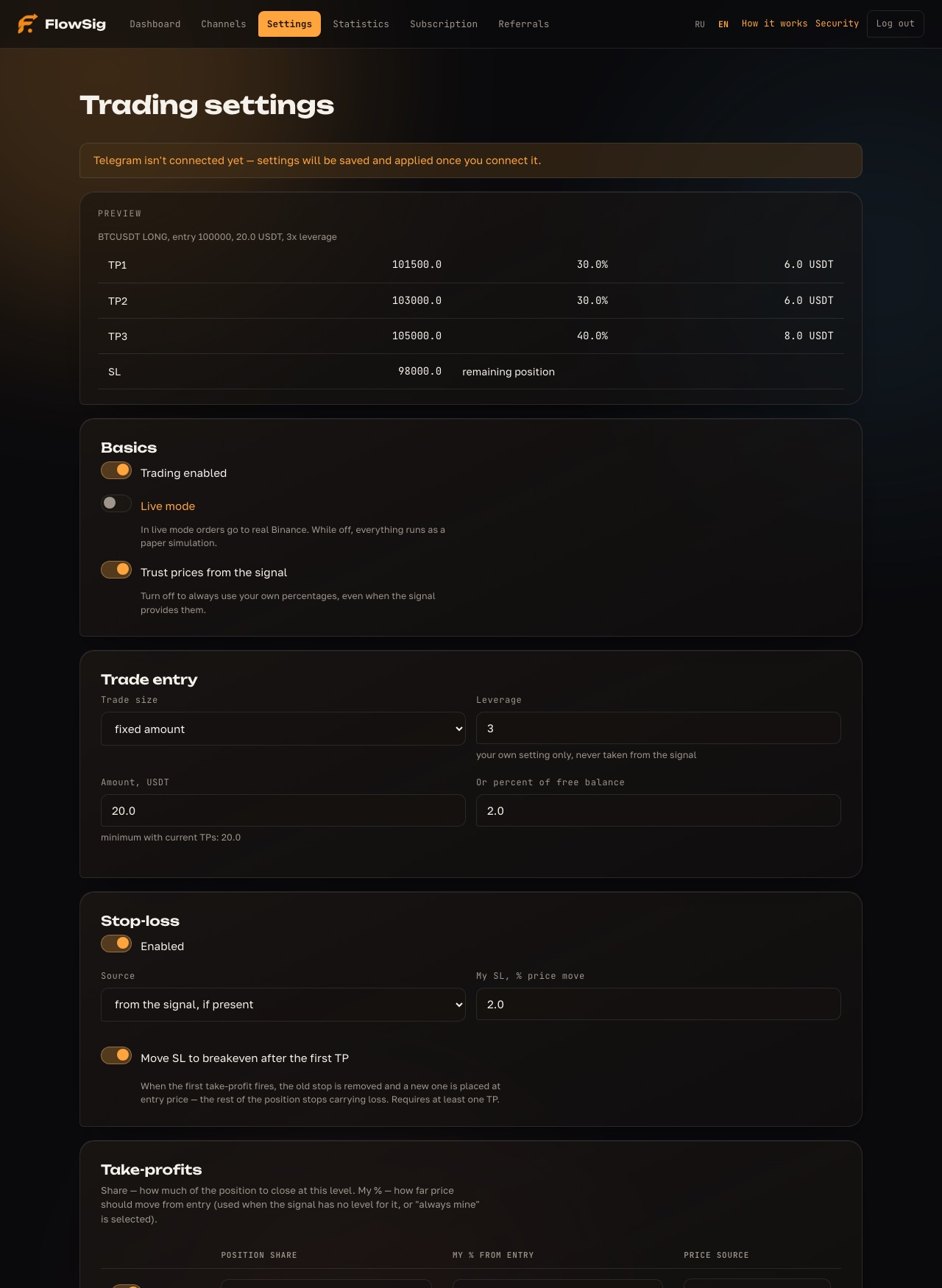
  • Settings are read before each new signal. Changing them affects future trades and never changes a position that is already open.
  • A real order requires both the global LIVE switch and LIVE on that source. This lets you test one source while another source trades live.
Set your rules and choose TEST or LIVE
Step 4

Write a prompt — your source’s signal filter

A prompt is an instruction for the AI on one channel or creator. It does not invent trades. It helps distinguish a trading signal from news, a chart, discussion, or a repeated post. The more accurately you describe the source, the fewer irrelevant messages enter processing.

  • State what counts as a signal: LONG and SHORT wording, ticker format, and required Entry, Stop Loss, or Take Profit levels. Also list what to skip: news, reviews, old results, memes, and posts without a direction.
  • Start with several real posts from that source. You can ask AI to draft a suitable prompt, then verify it in TEST. Each source needs its own prompt; do not copy one blindly between different creators.
Write a prompt — your source’s signal filter
Step 5

Check everything in Overview

Overview shows source and exchange status, balances, open TEST and LIVE positions, source results, and the event feed. Use it to confirm that the right source is receiving messages and the intended trading mode is selected.
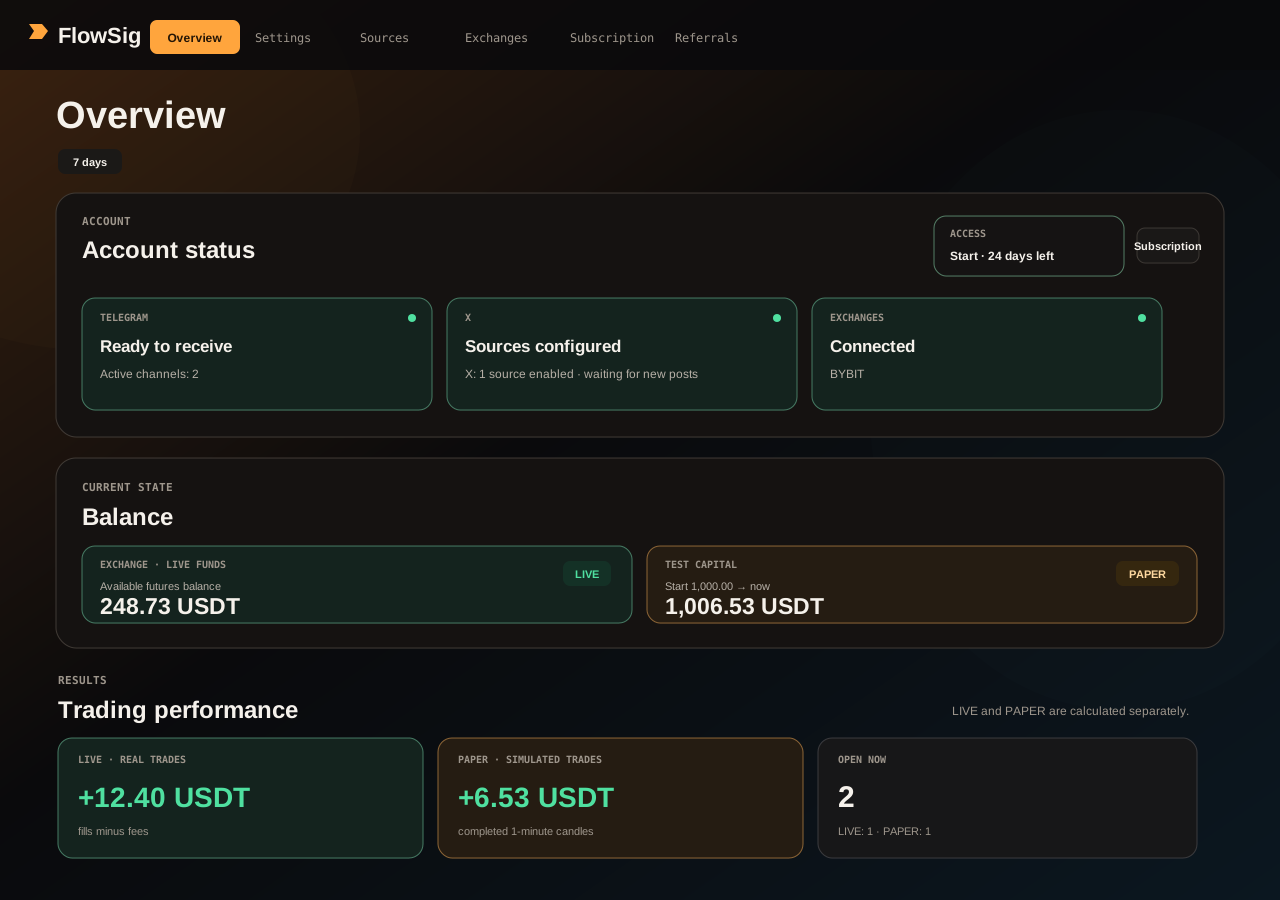
  • No new message is not automatically an error: a source may simply have no new posts. Status shows whether a source is connected, disabled by you, or limited by the subscription.
  • TEST and LIVE are shown separately, so simulated results never mix with real results. Use the period and source filters to assess each source on its own.
Check everything in Overview
LIVE TRADING

Where to create your exchange API key

A key is only needed for LIVE. Enable 2FA before creating one. Make a dedicated key with minimum permissions: read access and futures trading (Read and Write).

Never share secrets Secret and Passphrase are typically shown once. Keep them in a password manager and paste them only into FlowSig's secure form.
Binance

Binance

Profile → API Management → Create API → System-generated. Enable Futures Trading and read access, then disable Withdraw.

Open Binance guide ↗
Bybit

Bybit

Profile → API → Create New Key → System-generated. Give Read-Write access for contract orders and positions; keep Withdraw disabled.

Open Bybit guide ↗
OKX

OKX

Profile → API and connections → Create API key. Choose Read and Trade, disable Withdraw, and save your Passphrase.

Open OKX guide ↗
◆

If you enable IP whitelisting, ask support for the current FlowSig server IP first. Never copy a random address from an old screenshot or message.

Step 6

Enable notifications and follow trades

Open the FlowSig bot through your personal link and tap Start. It reports live-position opens and closes, take-profit fills, stop-loss moves to breakeven, and clear errors that need your action.
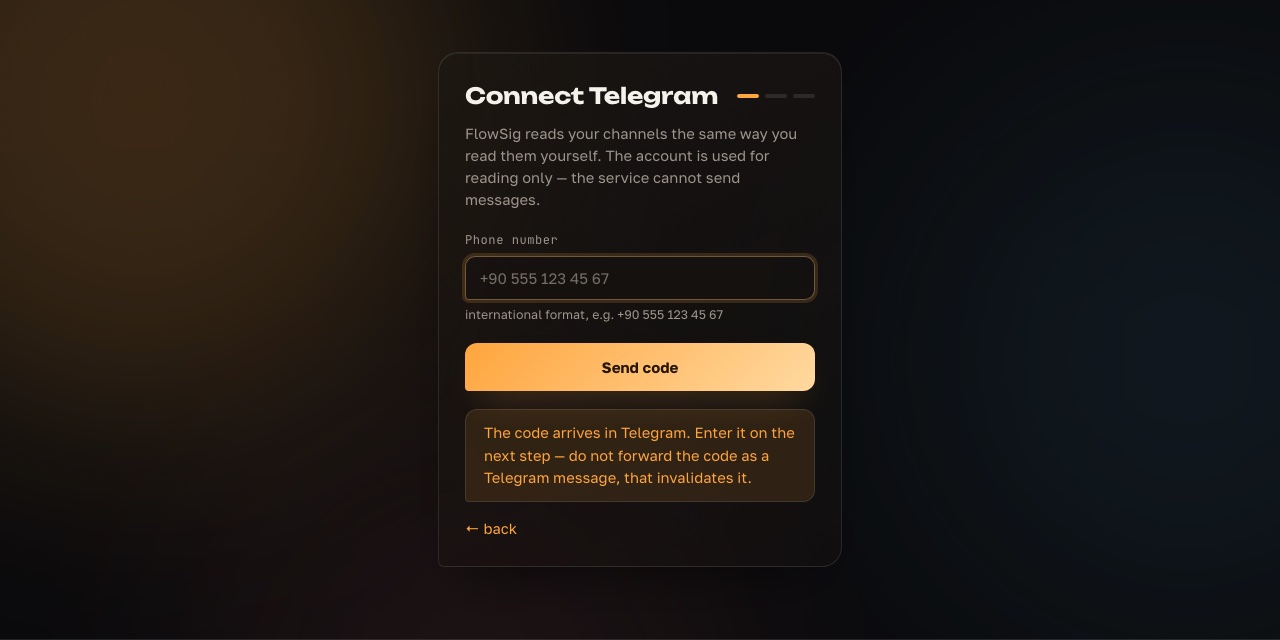
  • If you opened the bot in the wrong Telegram account, use Reconnect bot in Settings. Notifications do not give the bot access to your Telegram account or exchange.
  • Do not enable LIVE until you have checked size, limits, and stop loss. TEST is a complete way to verify rules and a specific source without sending orders to an exchange.
Enable notifications and follow trades
Step 7

Watch limits and results

Subscription / Pricing shows access time and limits for sources, AI analyses, and open positions. Overview lets you compare each source before you trust it with LIVE trading.
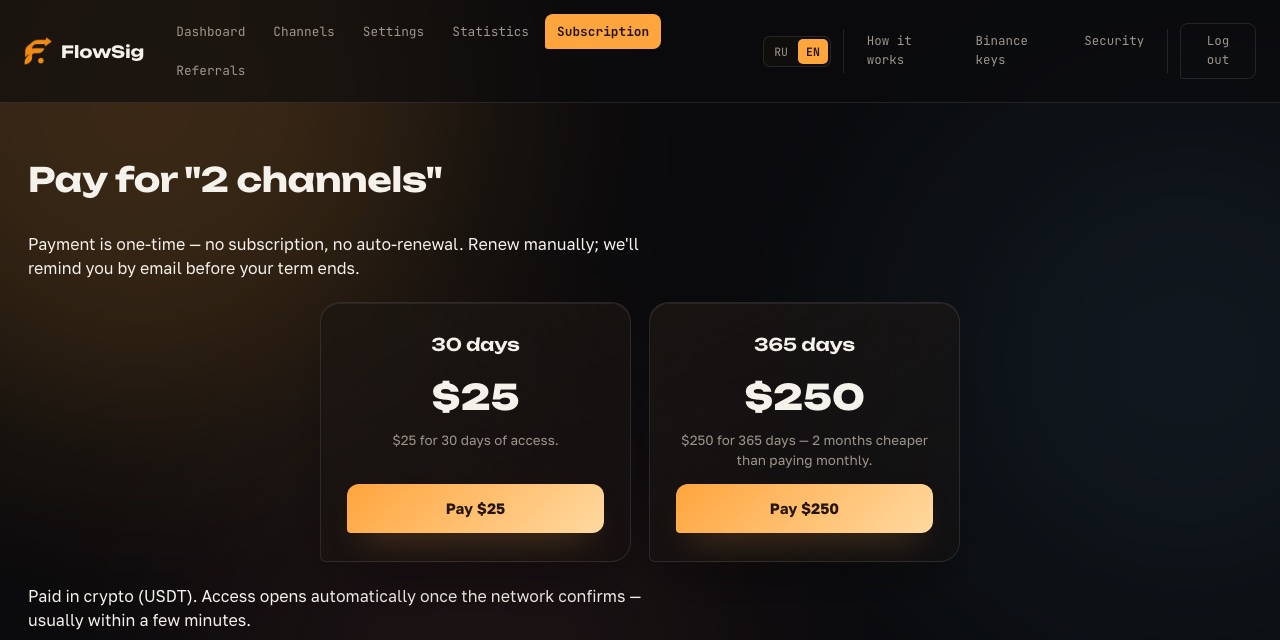
  • Payments are one-time with no automatic charge. Check the plan and its limits in Subscription / Pricing before paying.
  • If you need more sources or payment help, contact support. Do not include keys or secrets in your message.
Watch limits and results

Ready to try it?

First 3 days free, no card required.

Start free trial